


Exit demo Live Demo of Racinage
Demo expires in
Help - Manage

Help

Getting Started
Welcome to Racinage Getting Started
Family Records
Building the Family Tree Family Records
Using the Gallery Family Records
Recording Family History Family Records
Events & Projects
Planning Events Events & Projects
Managing Projects Events & Projects
Finances
Wallets & Transactions Finances
Documents
Storing Documents Documents
Public Sharing
Public Sharing & Recommendations Public Sharing
Understanding Notifications Public Sharing
Members & Settings
Members & Permissions Members & Settings
Settings & Currencies Members & Settings
Troubleshooting
Troubleshooting Troubleshooting
Getting Started

Welcome to Racinage


What is Racinage?

Racinage is your family's private space to build a family tree, keep a shared photo gallery, plan events and projects, track checklists and contributions, store documents, and record your family history.

Finding your way around

  • Tree - explore and grow the family tree.
  • Gallery - browse photos organised into albums.
  • Events & Projects - plan gatherings and shared goals, and follow checklist and contribution progress.
  • Finances - keep wallets and record money in and out.
  • Documents - store and share important family files.
  • History - a timeline of family milestones.

Use the global search at the top of the page to jump straight to any record.

Your first ten minutes

  1. Check your account details under Manage > Account.
  2. Create your first family account or accept a collaboration invite.
  3. Add the first people to the tree, then organise related photos, events, and records.

Each dashboard section follows the selected family account. Use the family switcher in the header before adding or editing records for another family.
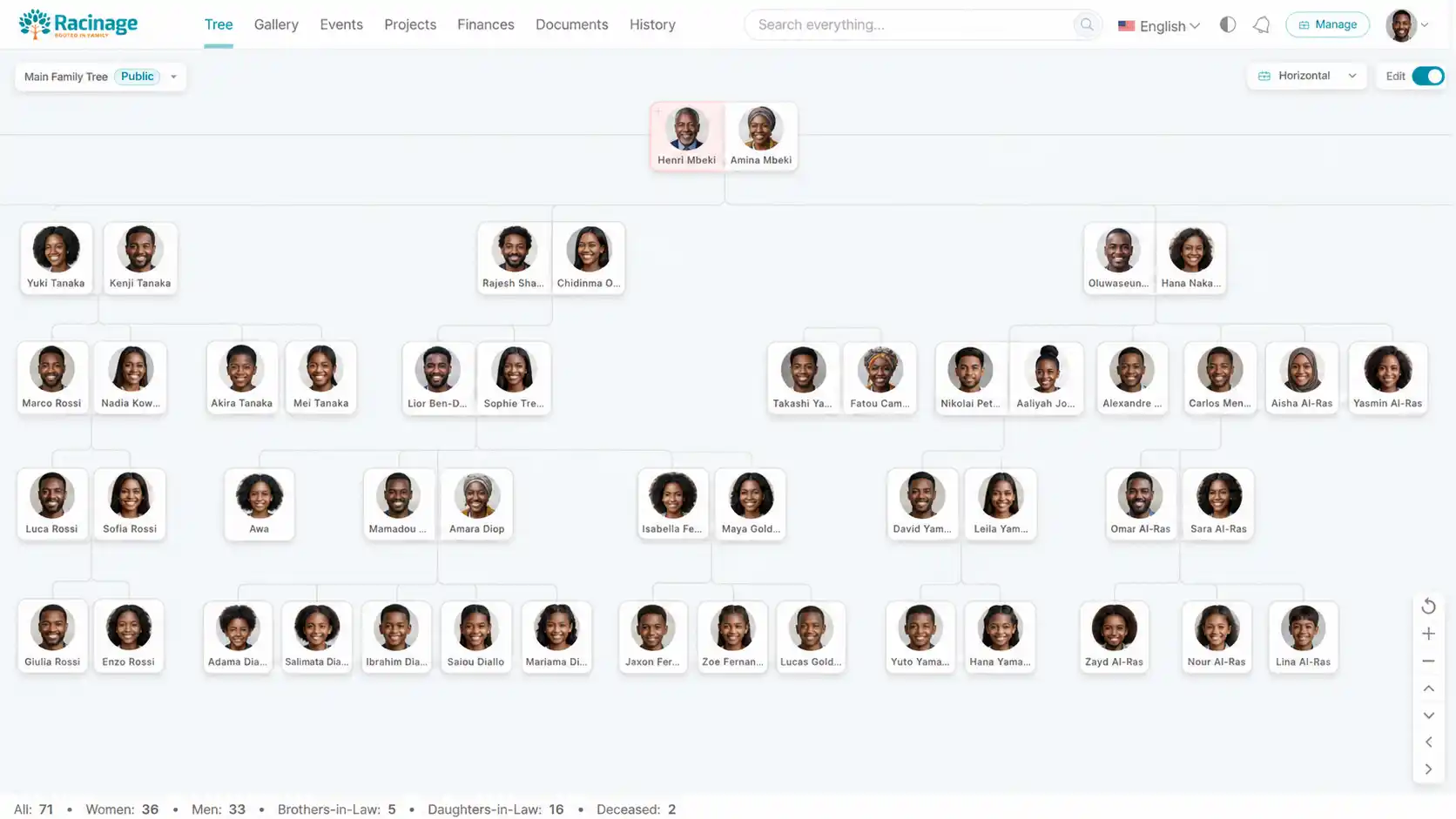
Family tree workspace
Build and navigate a family tree.

Need More Help?

If you cannot find an answer in the articles, reach the family administrator using the channels below.

Racinage Customer Service

Choose a topic, then read the matching documentation or contact our team.

Tip: browse the Articles tab for step-by-step guides on the tree, gallery, events, projects, finances, documents, and public sharing.