
Core workflow
Family tree
Last updated 2026-10-11T16:23:29+00:00
The tree is the heart of Racinage. It supports a horizontal canvas for relationship mapping and a vertical view for compact browsing.
Children keep the order in which they were added to the tree. Editing names, dates, photos, or other profile details does not reorder them. Only an explicit Birth position takes precedence; clearing it restores insertion order among children without a birth position.
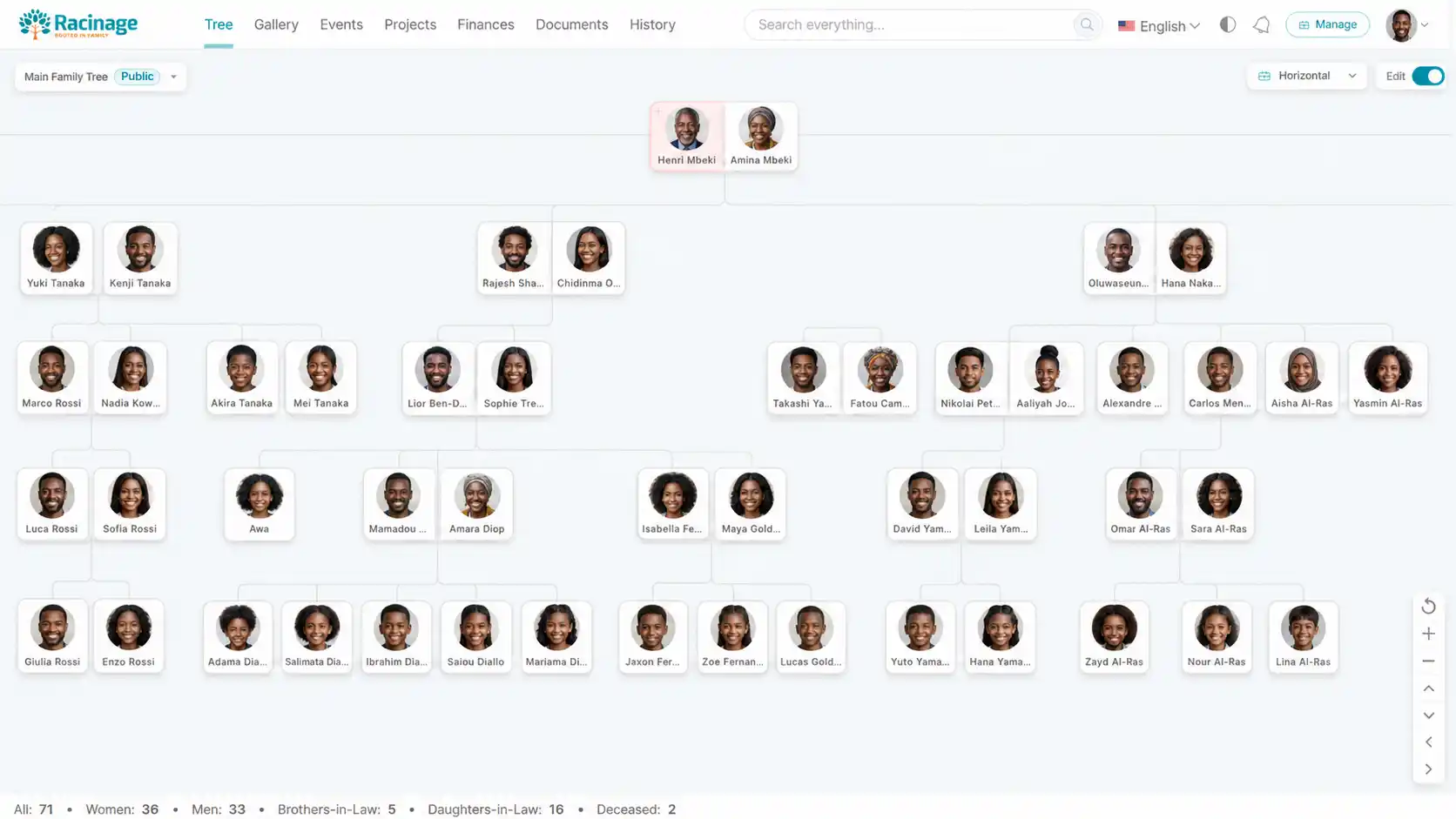
Tree layouts
Use horizontal view when editing relationships and visual spacing matters. Use vertical view when browsing a branch or opening profiles from a narrow screen.
- Horizontal: best for adding spouses, external partners, parents, and children.
- Vertical: best for scanning a branch and expanding or collapsing family sections.
- Generation rail: the left-side rail marks generation positions in horizontal view and can be hidden from Manage > Settings.
- Reset view: returns the horizontal tree to the centered home position.
Admins can also set the default tree view and horizontal zoom from Manage > Settings > Interface Appearance. A user's saved local layout choice still takes priority on that device.
Print a tree
Open the tree menu and choose Print Tree. Review the landscape preview and the suggested paper size, from A4 to A0. Names and relationship lines stay vector sharp; photos use their largest available variant. Select 300 dpi or higher in the printer settings. For a very large tree, print a partial section or use a larger custom paper size. Choose Print Tree to open the browser print dialog, or Cancel to return.
Adding people
If a name is not known, choose New Person and check Unknown. Each addition creates a separate, visible person with its own relationships. Open the person’s profile later to replace the placeholder name when the identity becomes known.
Turn on edit mode, hover over a person or couple, and use the add controls. Racinage supports creating a new person or attaching an existing person who is not already in the selected tree.
To work across every family account where you are an owner or approved collaborator, open the tree selector and choose Manage Persons. The directory shows each person once, including people not yet assigned to a tree, with family and tree filters, search, Grid and List views, optional grouping by family account or first letter, and progressive loading as you scroll. Cards show the available year range and age at a glance. Selecting a card opens the same read-only person details used by the tree.
A small calendar icon marks living people whose birthday is today or tomorrow. It appears in the directory and in both Horizontal and Vertical tree views.
This creates the first root of a new tree.
Use parents for ancestry and spouse for the main couple relationship.
Children appear below the parent or couple branch.
Spouses and external partners
A spouse is the current couple relationship in the main branch. An external partner represents another partner of one person in that couple. External partners and their children are placed beside the related person so sibling branches stay readable.
Partial Trees
A Partial Tree is a focused view of the canonical family tree. It does not copy people or relationships. It anchors the view to one exact couple relationship, so changes made in the main tree are reflected in every Partial Tree that uses that structure.
To open one, use Horizontal view, select either person in the couple, then choose Partial from the profile actions. Racinage asks which type to create:
- Temporary: keeps the focused view in the current browser tab and shows it under its main tree while active. It survives navigation and refresh in that tab, but is not permanently saved or synchronized to other tabs or devices.
- Permanent: saves a named view below its main tree in the tree picker. A Permanent Partial Tree can be private to its creator or shared with family members who can access the tree.
The focused view contains the anchored couple, their shared descendants, descendant partners, and the external partners of both people in the anchored couple. Each external partner branch includes the children shared with the relevant member of the anchored couple and those children’s descendants.
Permanent Partial Trees can be searched and managed from the tree picker. Depending on permission, you can rename, re-anchor, change visibility, archive, restore, or delete a saved view. Creating or changing a family-shared view requires tree-management permission.
Permanent Partial Trees can also have one or more public links. Select the three-dot action beside a saved Partial Tree, then choose Make Public. Public Partials use the same controls as a public main tree, including image and identity privacy, visible person fields, external-partner branch visibility, viewer recommendations, share buttons, public discovery metadata, and live updates. Temporary Partial Trees cannot be made public.
If the anchored relationship is removed or the main tree becomes unavailable, Racinage disables the Partial Tree instead of showing an incorrect structure. Its saved definition remains available so an authorized editor can re-anchor or delete it.
Temporary and permanent partials use the same relationship renderer as the main tree. Nested couples retain their own partners; shared, single-parent, and external-branch children keep their canonical placement without duplicate cards. Editing, refreshing, and re-anchoring retain the selected partial and update asynchronously.
Select the photo in a person’s profile to open its large version in the lightbox. Close it to return to the same profile.
Profile actions
When choosing a profile photo, zoom and reposition the image, adjust Light, then confirm the crop. The preview stays in the form until you save. To remove an existing custom photo, select the bin at the top right of its preview in the editor. Removal happens immediately, returns the person to the default image, and deletes unused profile-photo files from server storage. Other unsaved details stay in the form.
Click a person profile image or card to open the profile modal. Editors can replace, update, hide, mark dead or alive, and remove people according to their permissions.
Each person also has a private gallery for additional photos and videos. The profile modal shows a compact preview below the person details. Select View all to open the complete collection above the profile, then select any item to browse it in the lightbox with Previous and Next controls. Editors can add or remove media, while viewers can only browse it.
- Hide: keeps the person in the structure but hides the visible details in the tree.
- Show: restores hidden details without rebuilding the whole tree.
- Mark Dead or Mark Alive: changes the deceased marker and updates the deceased statistic. Mark Dead leaves the date unknown. In the profile editor, select Deceased - date unknown or enter the actual death date when known. An unknown death date does not generate anniversary reminders or an estimated age at death.
- Remove: can remove only the person or remove their relationships, depending on the branch.
The persons directory can also edit or permanently delete a full person record. Before deletion, Racinage shows linked-tree and record impact, requires the exact name, rechecks all family permissions, removes tree links, repairs affected tree roots, and preserves the person name on supported event, project, and history references.
Large tree performance
Larger trees load in the background with a retry option if the connection fails. Repeat visits can reuse a limited browser copy after Racinage checks that your access and the tree are still current. A connection is required for this check. In horizontal and vertical views, off-screen cards keep their positions and connections while their contents are deferred until you approach them. Live edits, search and partial views continue to work as usual.
Non-structural actions such as hide, show, mark dead, and mark alive update the visible cards in place. Structural actions such as adding a child or removing a relationship still refresh the tree because the branch shape changes.
Drag the horizontal tree to pan; releasing a moving drag lets it glide briefly to a stop. Start another drag or use a control to stop the glide immediately. Reduced-motion preferences disable this effect.
Click a statistic below the tree to browse that category of people. Search the profile grid or scroll for more results; opening a card shows the person's details. Partial Trees list only people in the selected branch.